

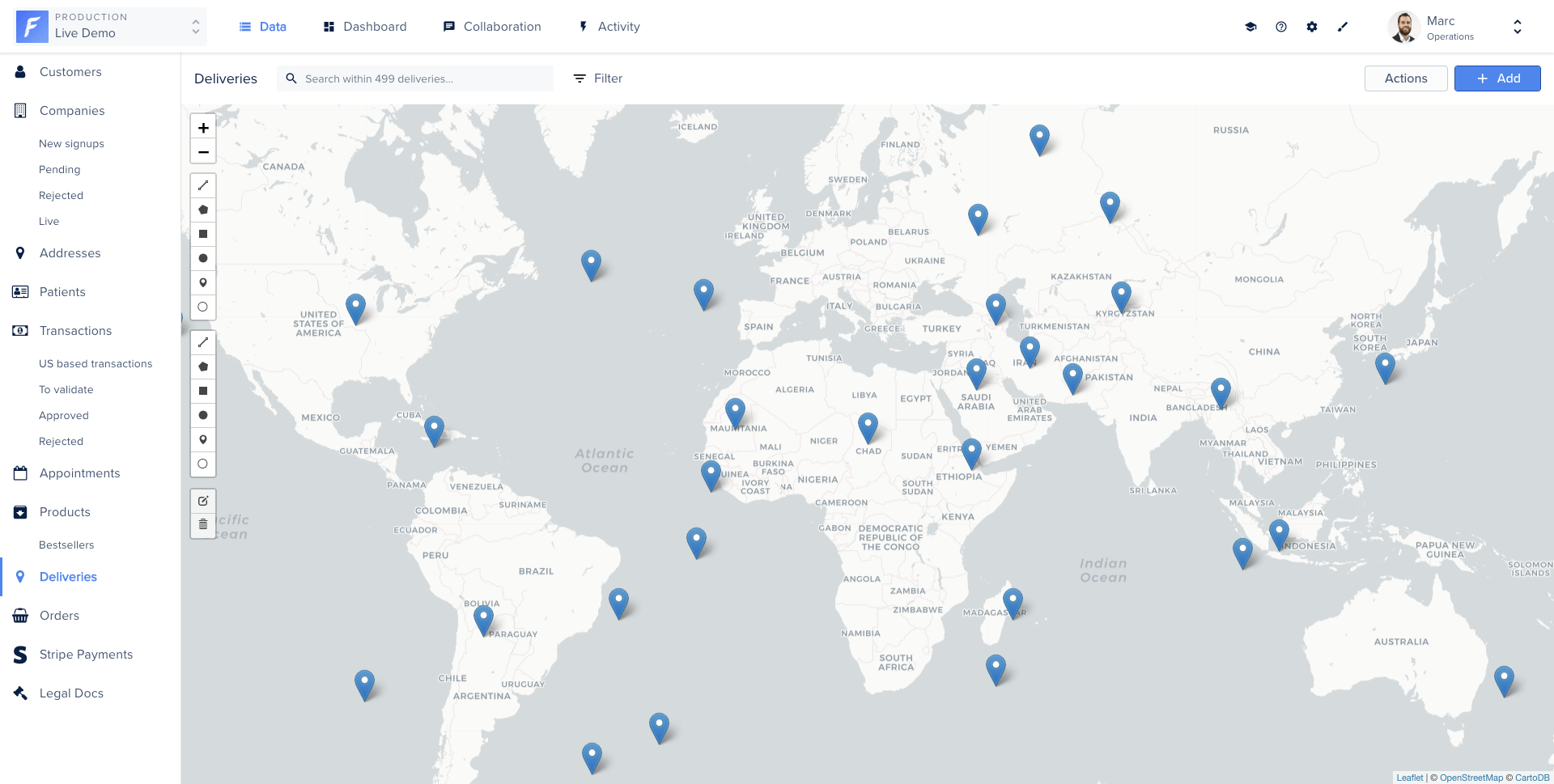
A map-based Smart View replacing the default table view
What is a smart view?
A Smart View is a Glimmer Component composed of three files: a JavaScript component, an HTML/Handlebars template, and a CSS stylesheet. Forest hosts and runs this code directly in your back-office.You don’t need to know Ember.js to write a Smart View. The examples below cover all the patterns you’ll need. For advanced use, refer to the Glimmer Component and Handlebars Template documentation.
Creating a smart view
Forest provides an online editor to write your Smart View code. Access it from the collection’s Settings, then the Smart Views tab.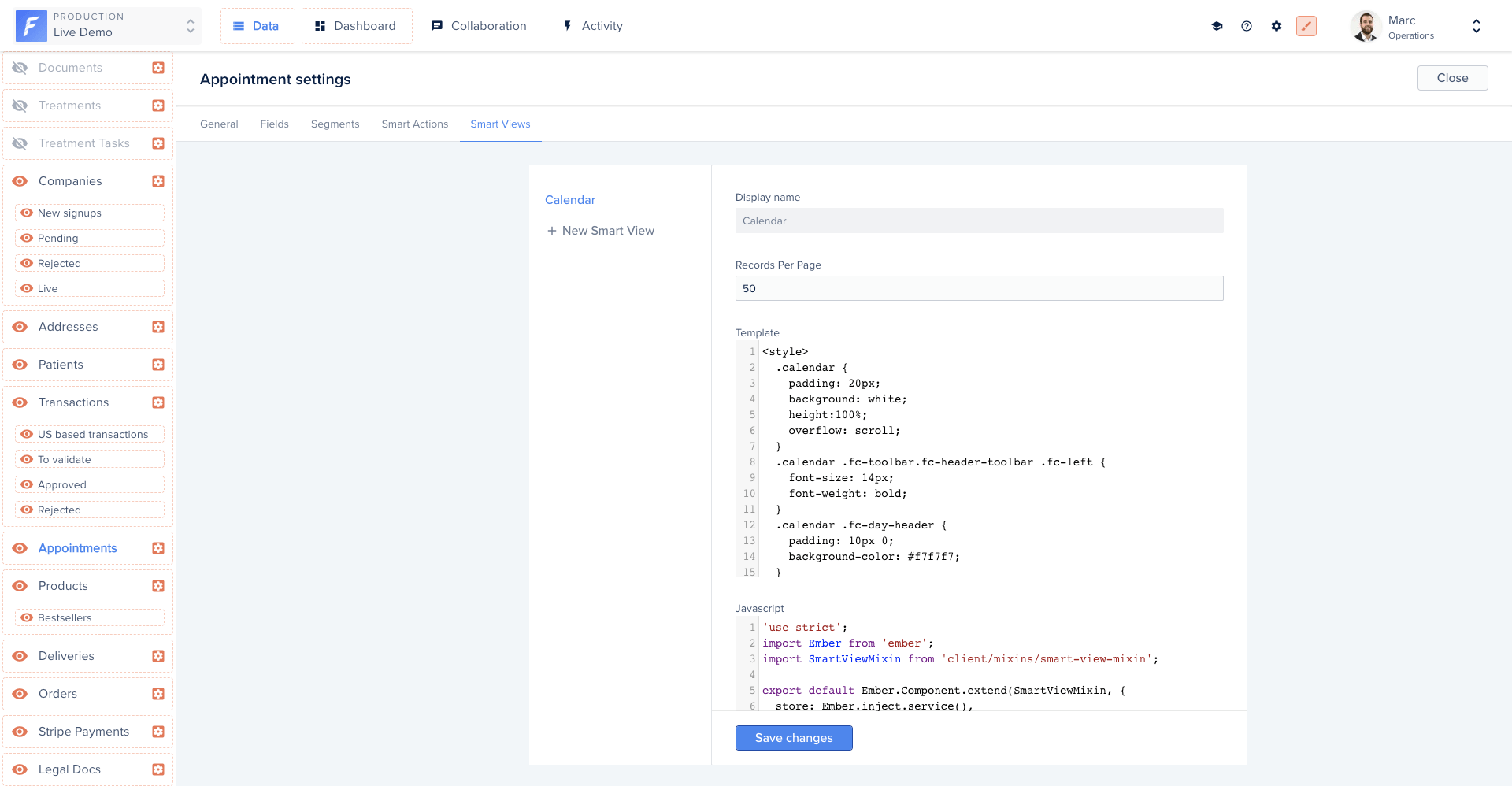
The Smart View code editor, template, component, and style tabs
Available properties
Forest automatically injects the following properties into your Smart View:Available actions
Forest also injects the following actions:Working with records
Iterating over records
Access all records from the@records property and iterate in your template:
Accessing field values
Access field values using theforest- prefix before the field name:
Accessing belongsTo relationships
Accessing abelongsTo relationship works the same as a field. Forest automatically fetches the related data via API when needed:
Accessing hasMany relationships
Same behavior applies forhasMany relationships:
Refreshing records
Call@fetchRecords to reload the current page of records:
Fetching records with custom filters
Use thestore service to query any collection with custom filters. In the example below, a calendar view fetches appointments within a date range:
component.js
template.hbs
Query parameters
Deleting records
ThedeleteRecords action deletes one or multiple records. A confirmation dialog is shown automatically.
template.hbs
component.js
Triggering actions
UsetriggerSmartAction to invoke an action directly from your Smart View.
template.hbs
component.js
triggerSmartAction function signature:
To pass values programmatically and skip the action form:
template.hbs
component.js
Applying a smart view
To activate a Smart View on a collection:- Enable the Layout Editor mode (top navigation bar)
- Click the view type button (table icon)
- Drag and drop your Smart View to the first position in the dropdown
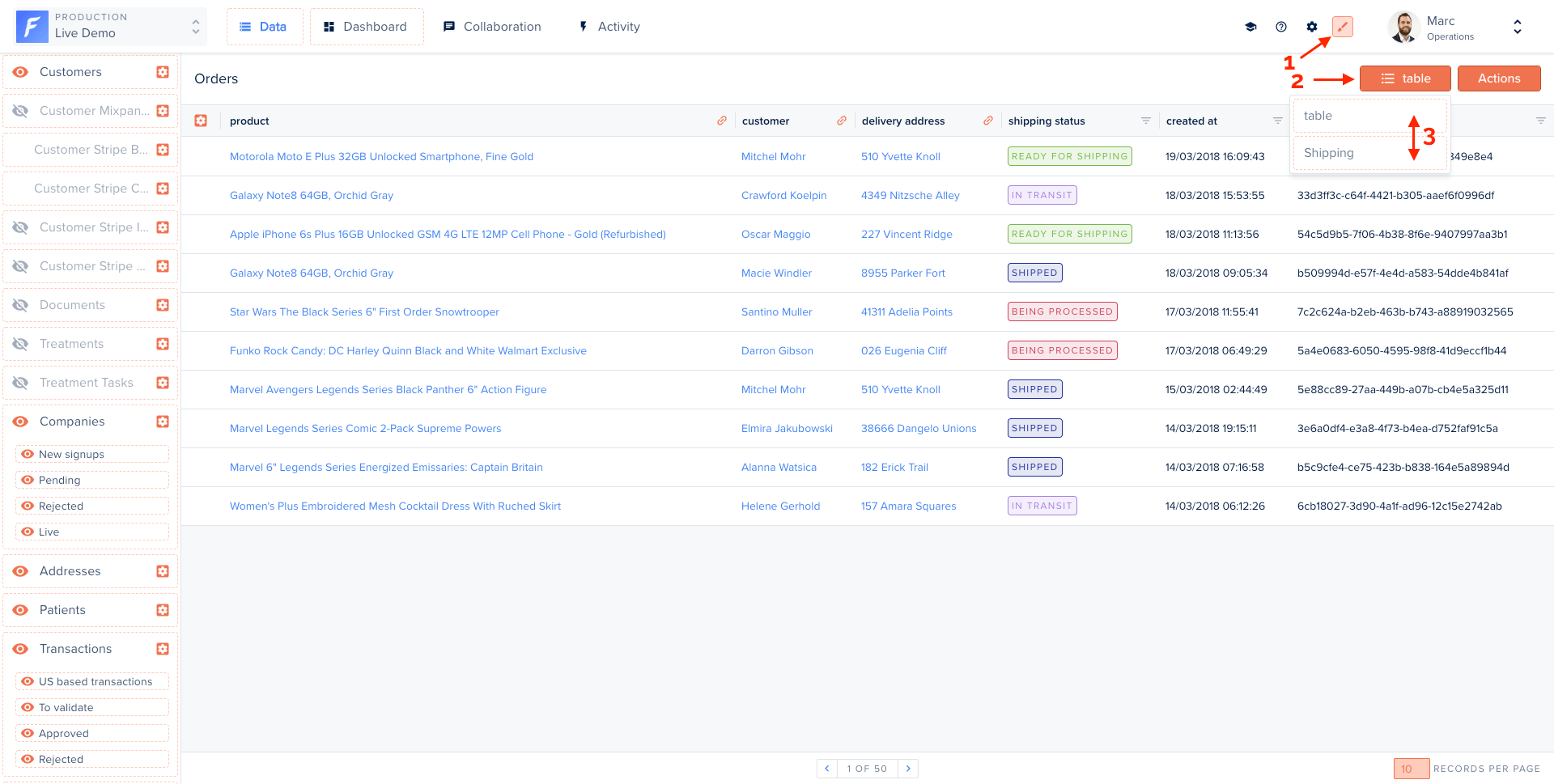
Reordering views in Layout Editor mode to apply a Smart View
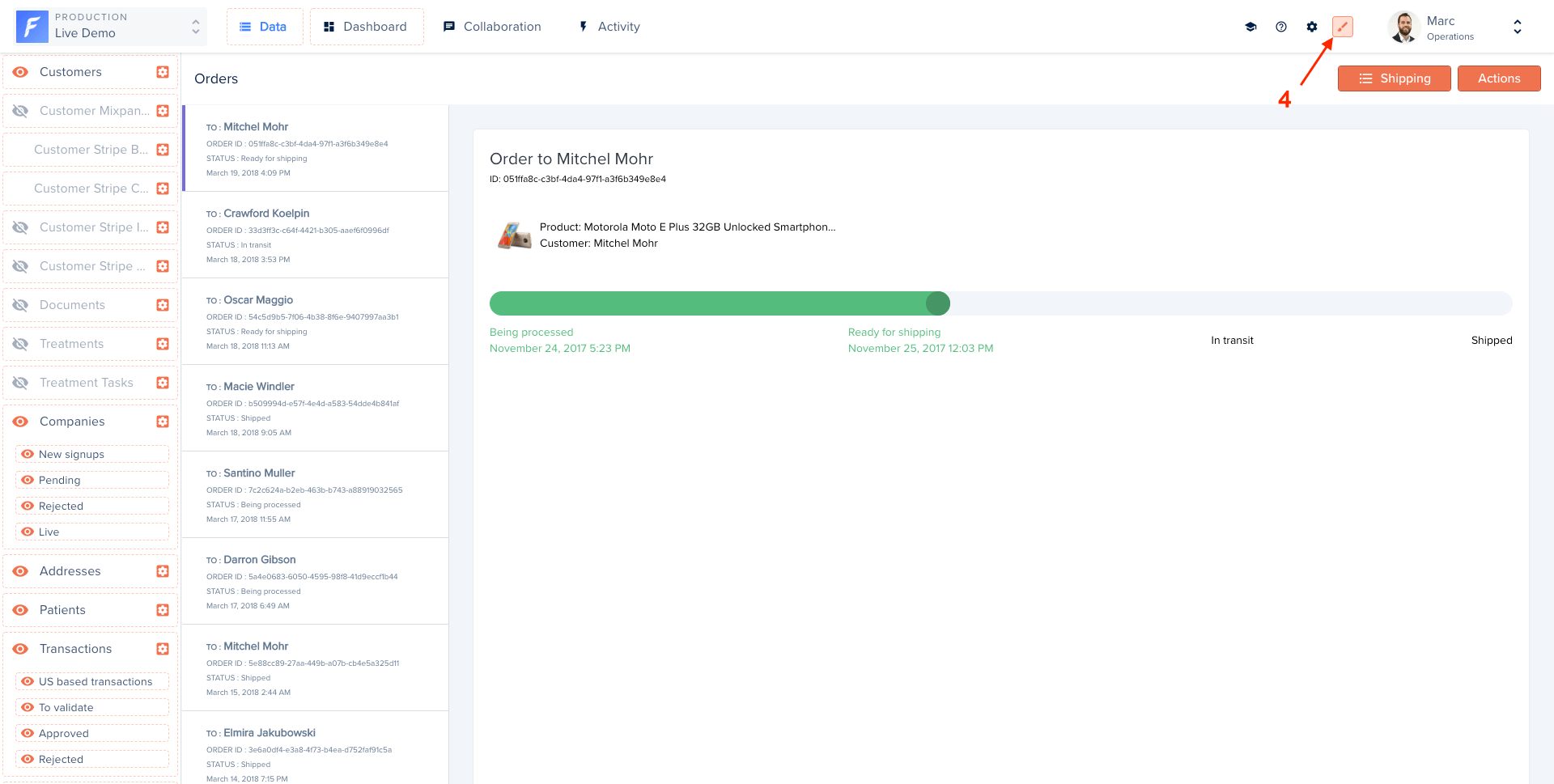
Enabling Layout Editor mode from the top navigation bar
Once a Smart View is applied to a collection, it also appears in related data panels and summary views. It is not currently possible to set different views for the table, summary, and related data contexts independently.
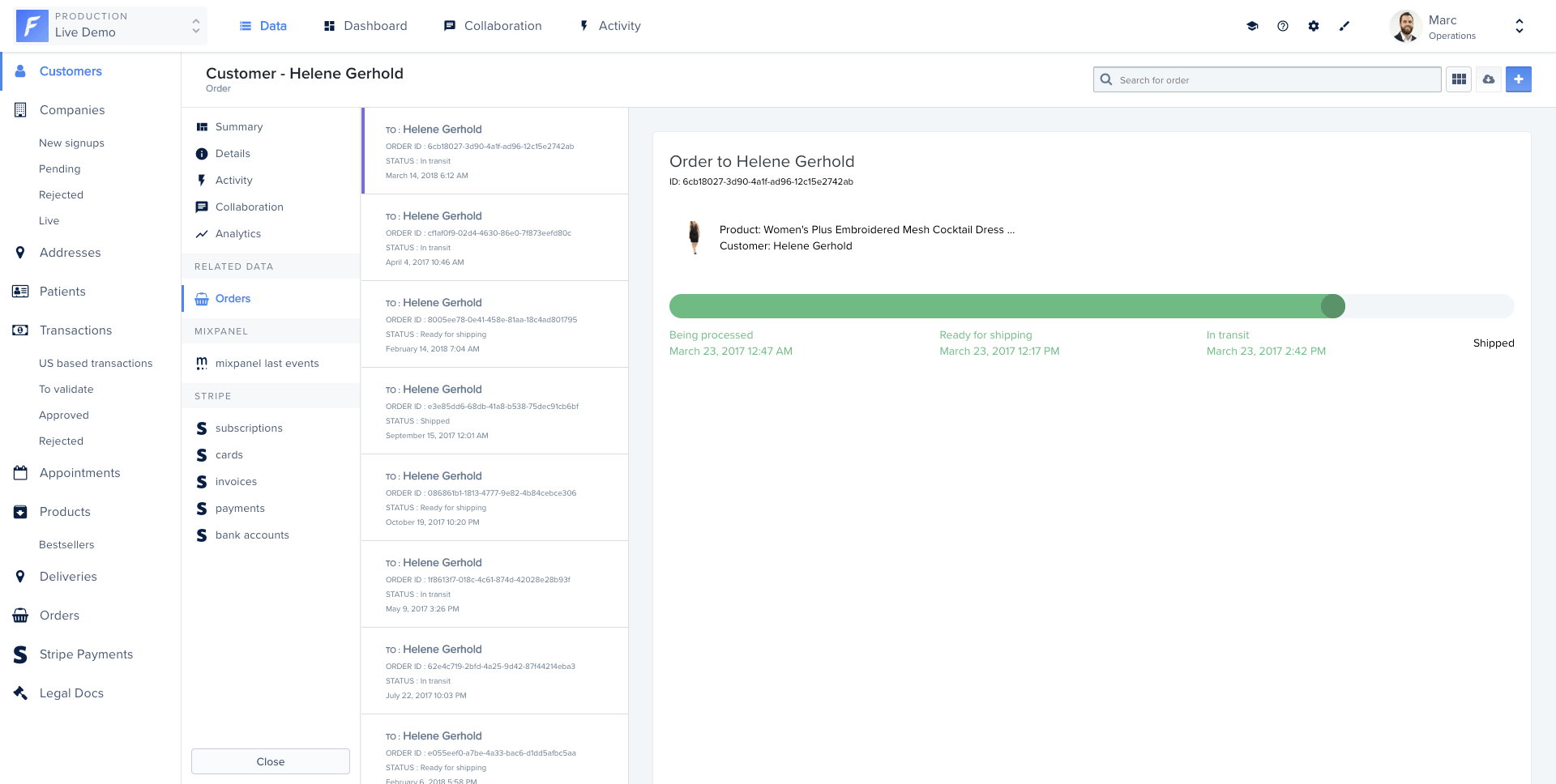
A Smart View also appears in Related Data panels
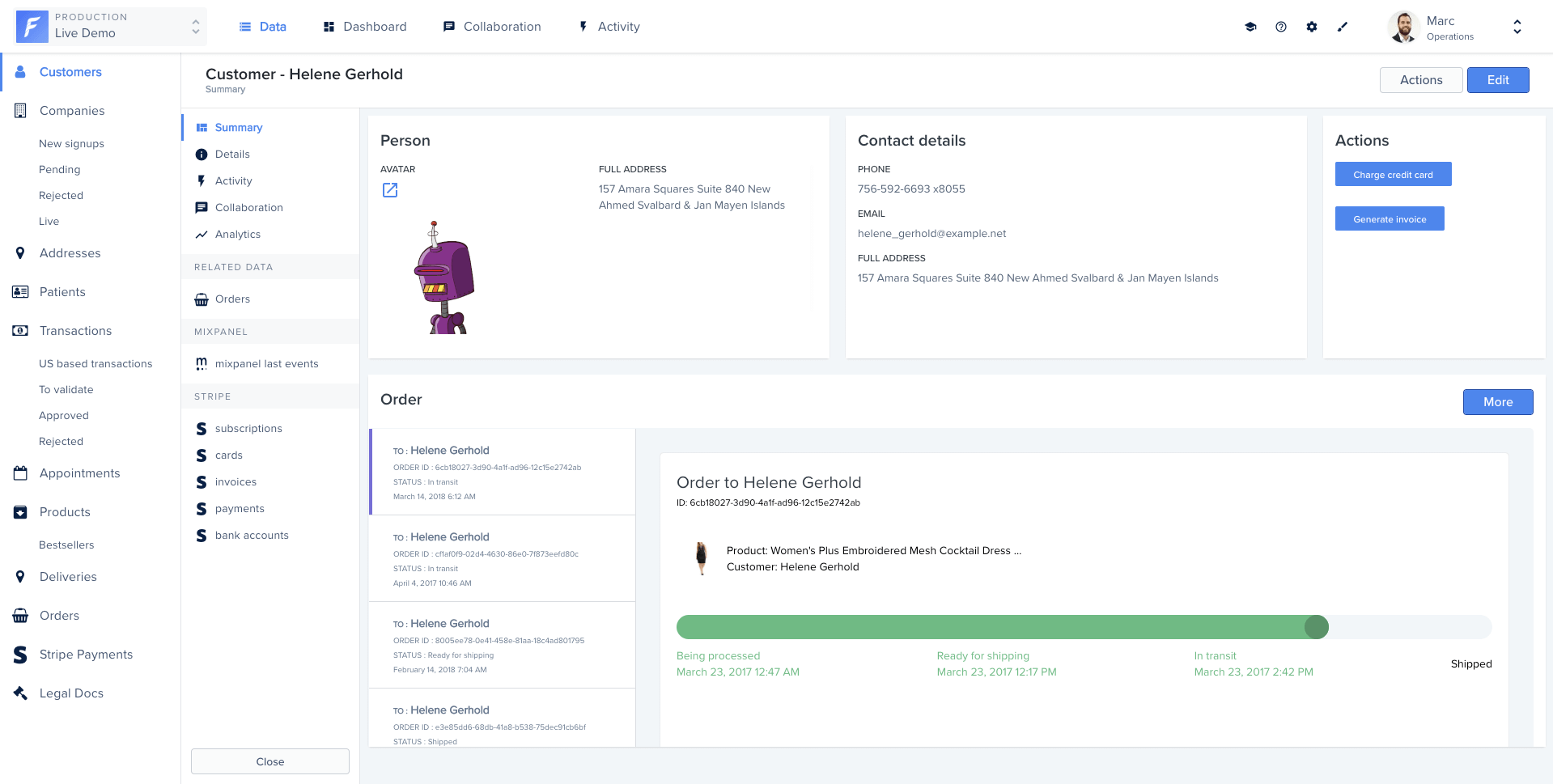
A Smart View also appears in Summary Views
Examples
Calendar view
Displays collection records on a calendar using FullCalendar. The component loads the library from CDN and uses date-range conditions to fetch relevant records.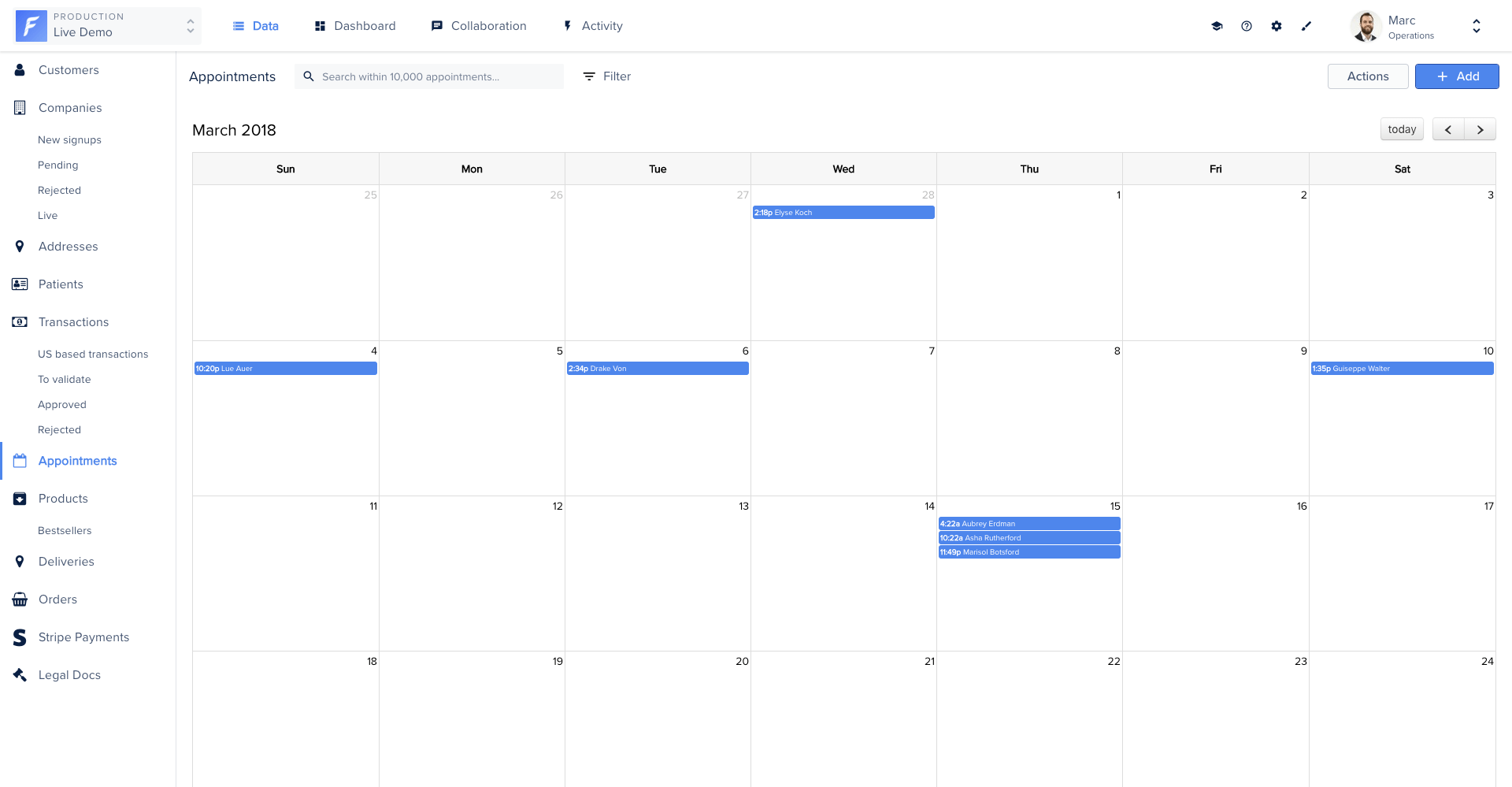
Calendar Smart View built with FullCalendar
component.js
style.css
template.hbs
Map view
Displays geo-located records on an interactive map using Leaflet. Clicking a marker opens the corresponding record. New records can be created by placing a marker.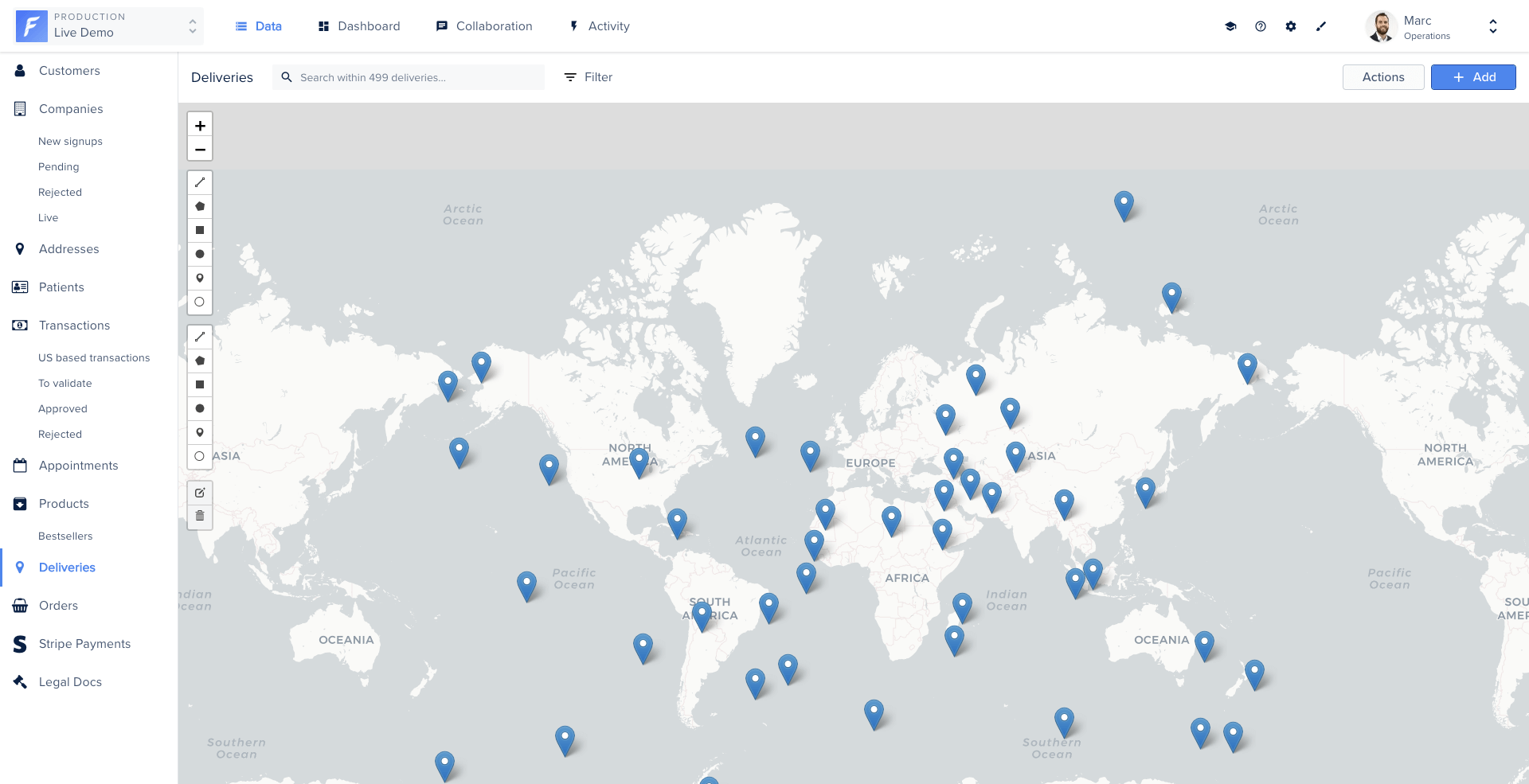
Delivery map Smart View built with Leaflet
component.js
style.css
template.hbs
Gallery view
Displays records as a grid of images. Each image links to the corresponding record’s detail page.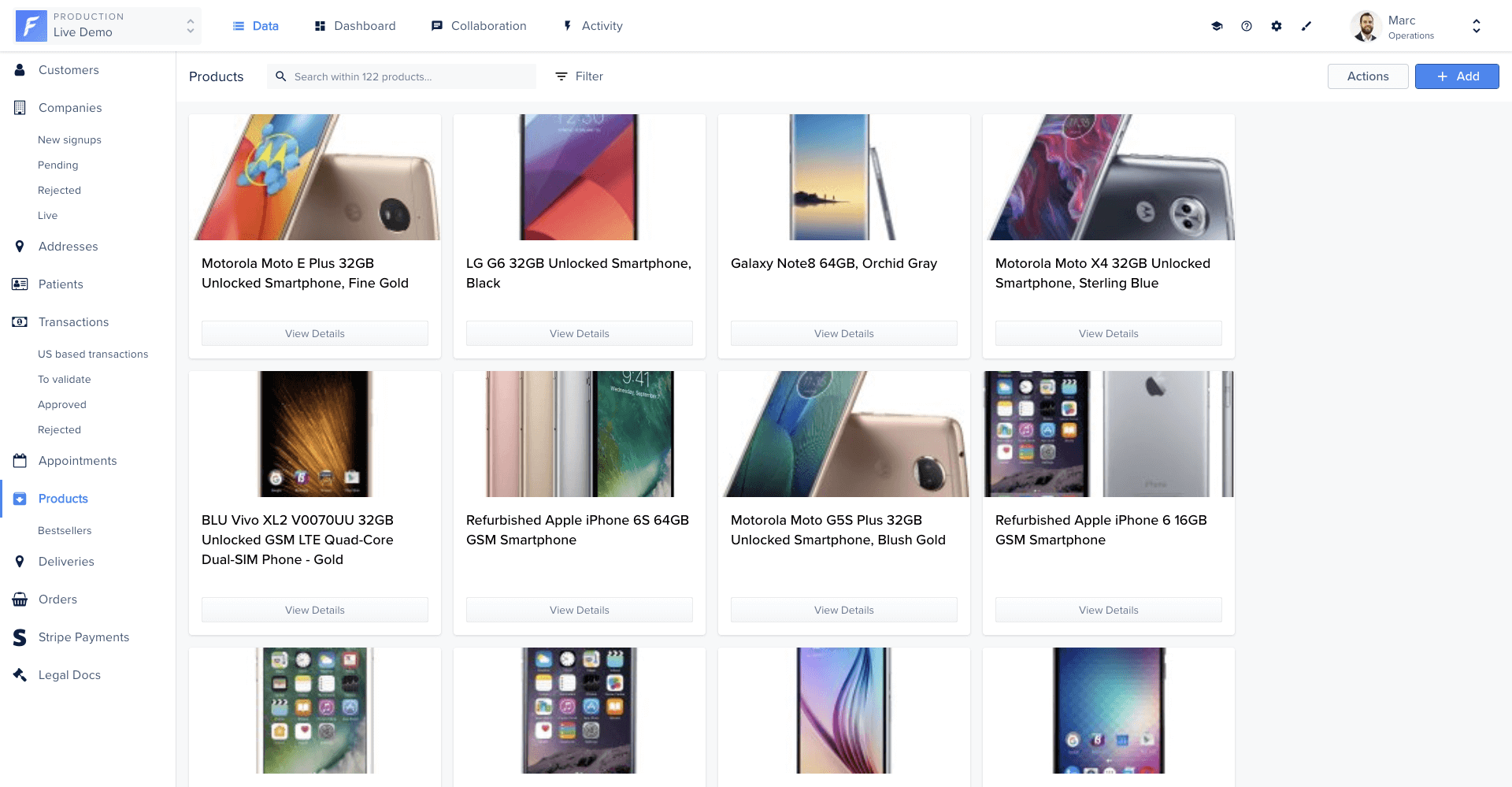
Gallery Smart View showing records as a grid of images
component.js
style.css
template.hbs
Shipping status view
Displays a master-detail layout: a scrollable list of orders on the left and a progress bar card on the right showing the shipping status of the selected order.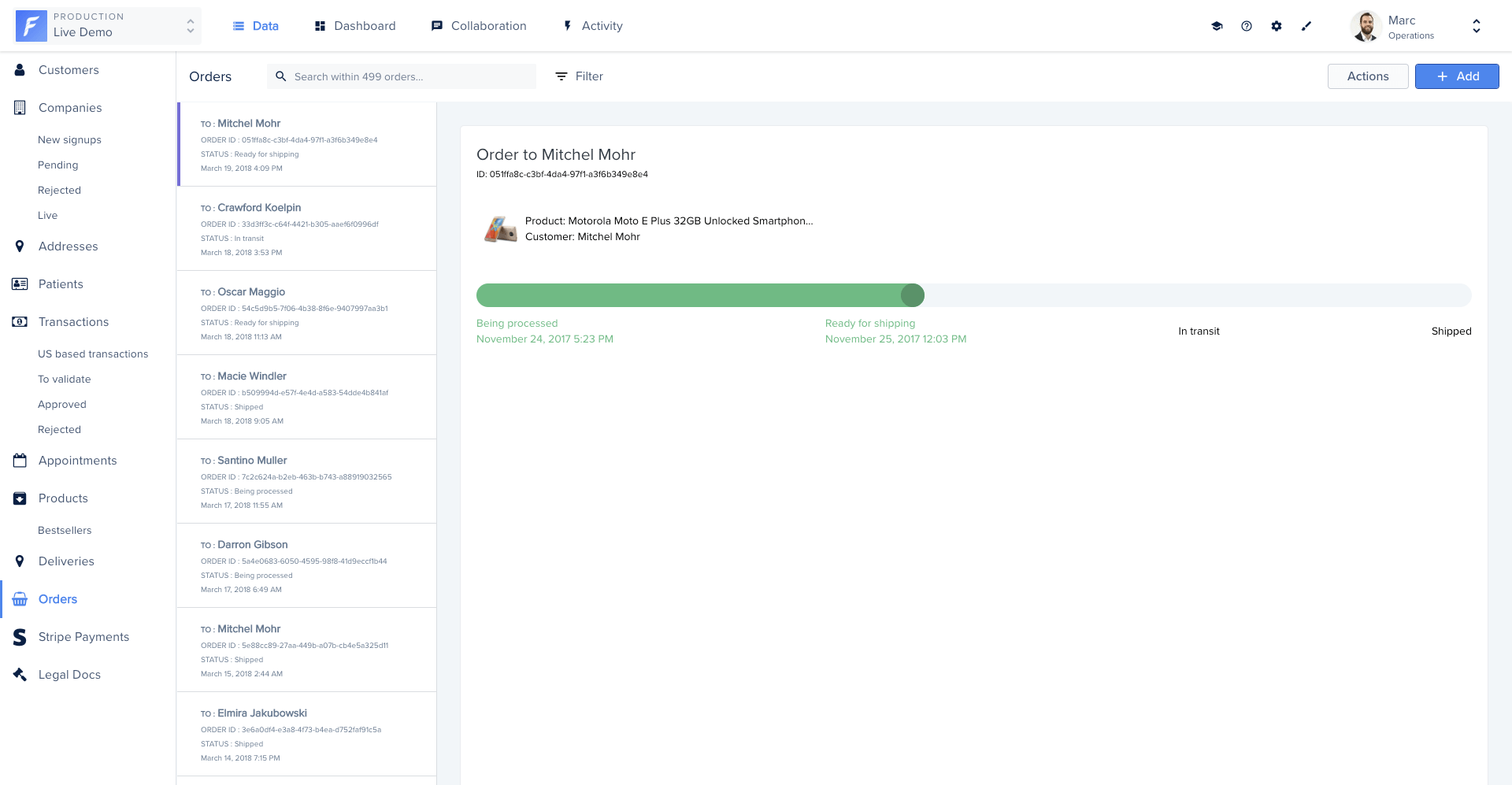
Shipping status Smart View, master-detail layout with a progress bar
component.js
template.hbs