

Overview
IP Whitelisting enables admins to control which IP addresses can access your back-office. This feature restricts back-office access to approved IP addresses only.How it works
When IP Whitelisting is enabled, Forest restricts access to your back-office to only those IP addresses that have been explicitly whitelisted. Users attempting to access from non-whitelisted IP addresses will be blocked.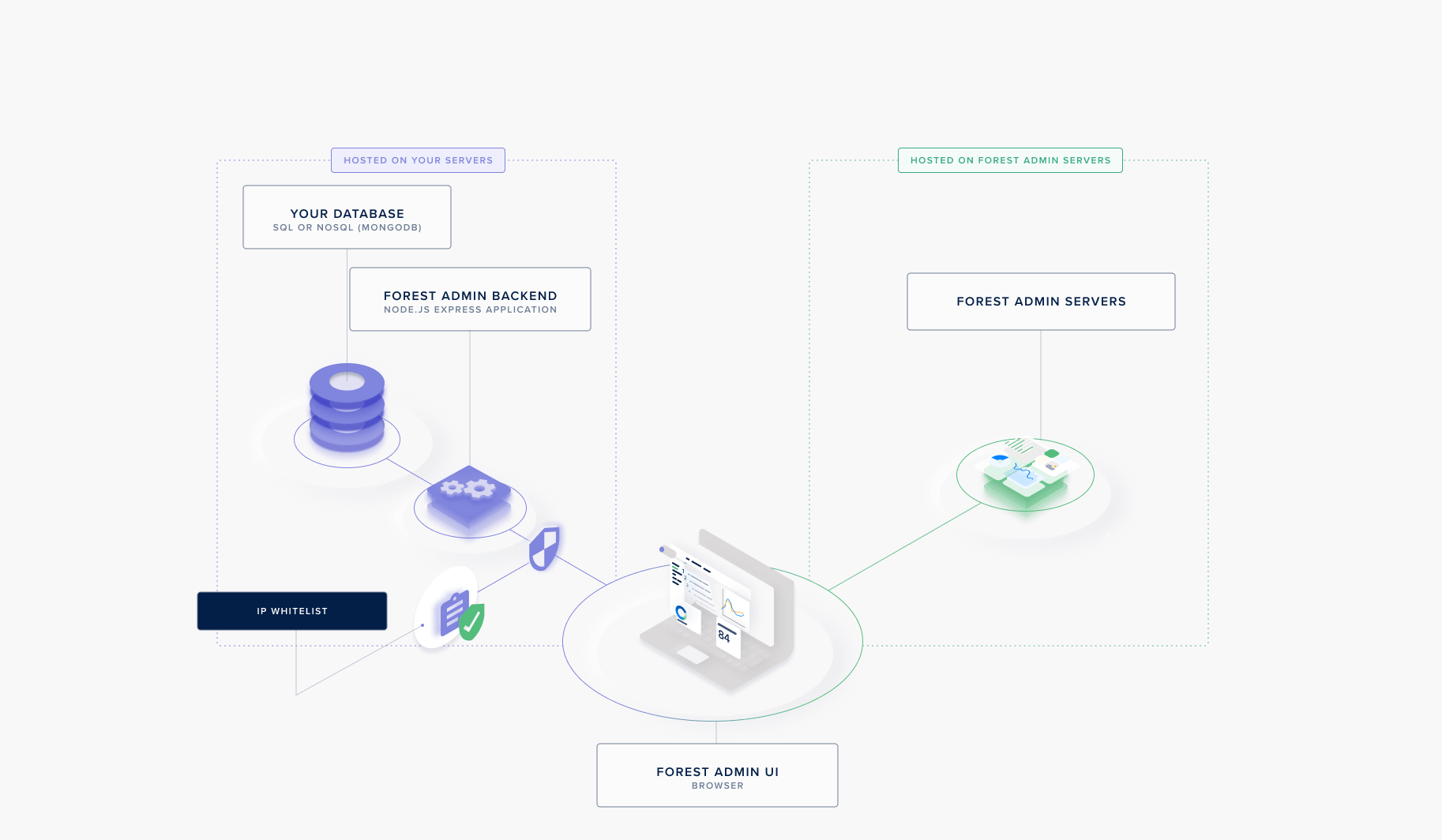
Configuration
To configure IP Whitelisting:1
Navigate to Security Settings
Go to Project Settings > Security Tab > IP Whitelisting
2
Enable IP Whitelisting
Turn on the IP Whitelisting feature
3
Add Approved IP Addresses
Add the IP addresses that should have access to your back-office
4
Save Settings
Save your configuration to enforce IP restrictions