

What is a Smart View?
Smart Views lets you code your view using JS, HTML, and CSS. They are taking data visualization to the next level. Ditch the table view and display your orders on a Map, your events in a Calendar, your movies, pictures and profiles in a Gallery. All of that with the easiness of Forest..png?fit=max&auto=format&n=7CReagZK6gkpGoy9&q=85&s=0a601e914b49740434563e0c746b1c41)
Creating a Smart View
Forest provides an online editor to inject your Smart View code. The editor is available on the collection’s settings, then in the “Smart views” tab..png?fit=max&auto=format&n=7CReagZK6gkpGoy9&q=85&s=614f51e4c51d5be17ebb60acc34d0568)
You don’t need to know the Ember.js framework to create a Smart View. We will guide you here on all the basic requirements. For more advanced usage, you can still refer to the Glimmer Component documentations.
Getting your records
The records of your collection are accessible from the records property. Here’s how to iterate over them in the template section:Accessing a specific record
For each record, you will access its attributes through theforest-attribute property. The forest- preceding the field name is required.
Accessing belongsTo relationships
Accessing abelongsTo relationship works in exactly the same way as accessing a simple field. Forest triggers automatically an API call to retrieve the data from your Admin API only if it’s necessary.
On the Shipping Smart View (in the collection named Order) defined on our Live Demo example, we’ve displayed the full name of the customer related to an order.
Accessing hasMany relationships
Accessing ahasMany relationship works in exactly the same way as accessing a simple field.. Forest triggers automatically an API call to retrieve the data from your Admin API only if it’s necessary.
Refreshing data
Trigger thefetchRecords action in order to refresh the records on the page.
Fetching data
Trigger an API call to your Admin API in order to fetch records from any collection and with any filters you want. We will use thestore service for that purpose. Check out the list of all available services from your Smart View.
In our Live Demo example, the collection appointments has a Calendar Smart View. When you click on the previous or next month, the Smart View fetches the new events in the selected month. The result here is set to the propertyappointments. You can access it directly from your template.
Available parameters
Deleting records
ThedeleteRecords action lets you delete one or multiple records. A pop-up will automatically ask for a confirmation when a user triggers the delete action.
Triggering a Smart Action
Here’s how to trigger your Smart Actions directly from your Smart Views.template.hbs
component.js
triggerSmartAction function imported from 'client/utils/smart-view-utils'has the following signature:
Here is an example of how to trigger the smart action with the values passed from the code, you only need to do it if you don’t want to use the built-in smart action form
template.hbs
component.js
Available properties
Forest automatically injects into your Smart View some properties to help you display your data like you want.Available actions
Forest automatically injects into your Smart View some actions to trigger the logic you want.Applying a Smart View
To apply a Smart view you created, turn on the Layout Editor mode (1), click on the table button (2) and drag & drop your Smart View’s name in first position inside the dropdown (3):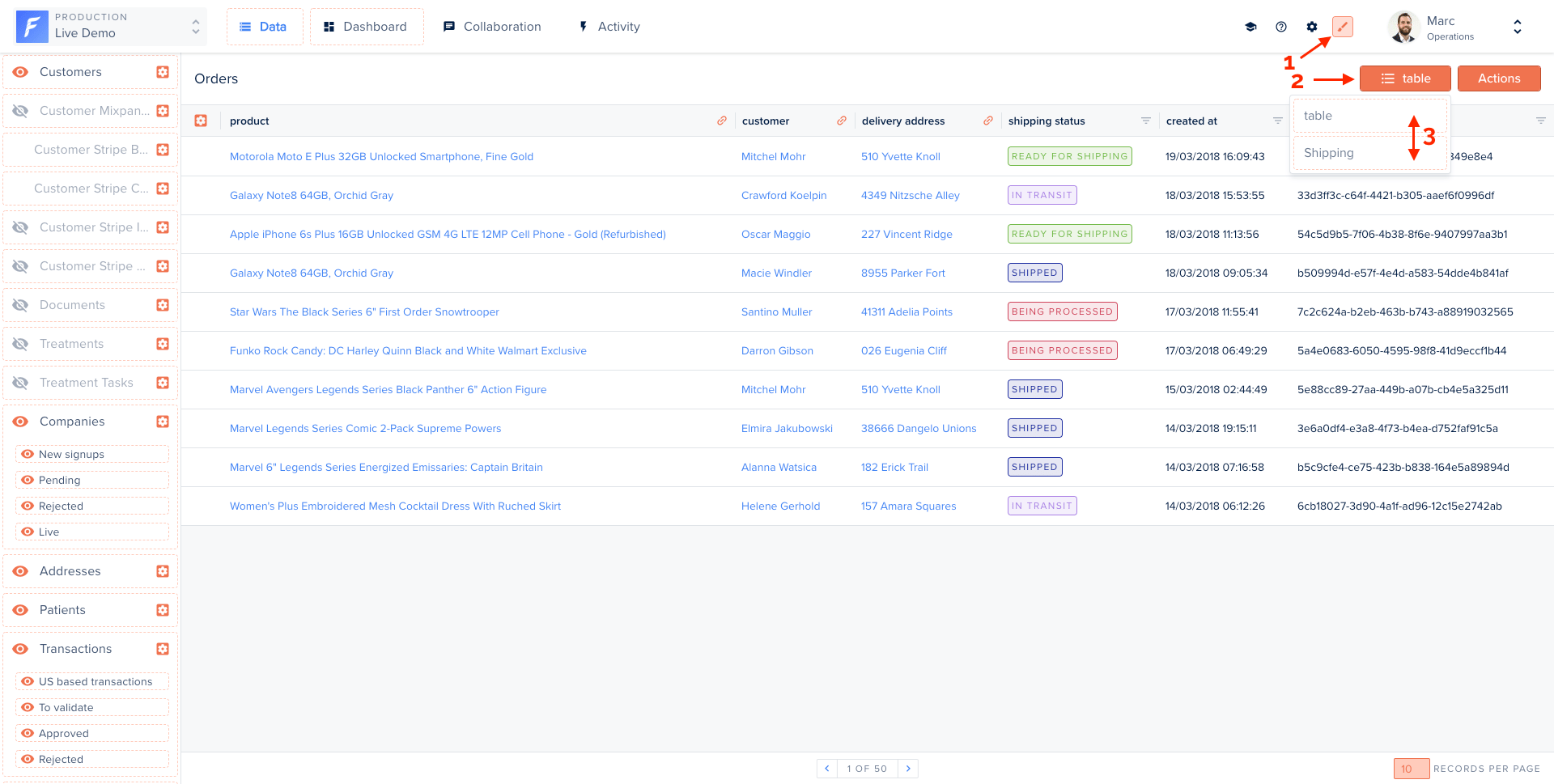
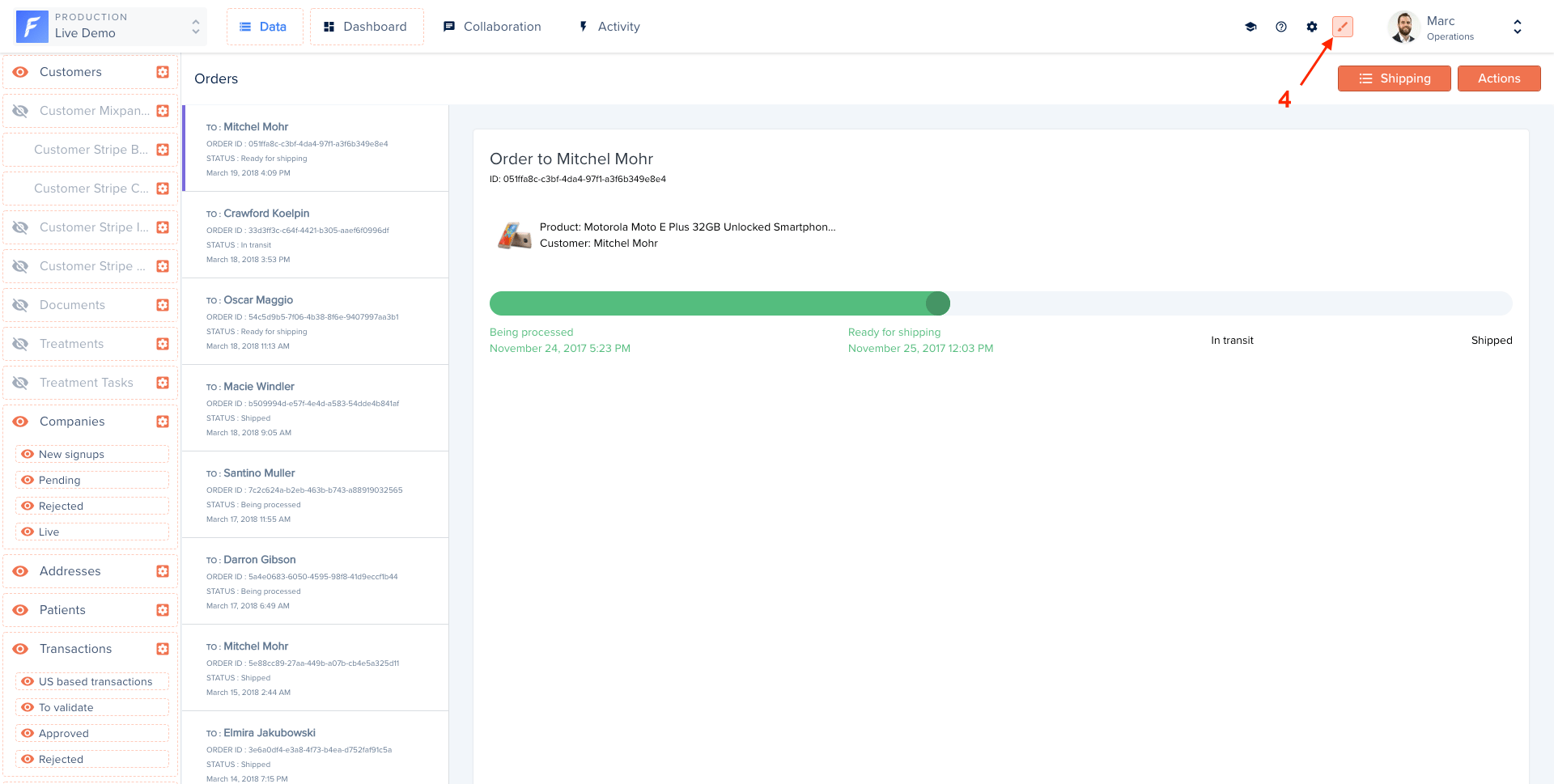
Impact on related data
Once your Smart view is applied, it will also be displayed in your record’s related data.In the related data section
.png?fit=max&auto=format&n=7CReagZK6gkpGoy9&q=85&s=67e4e19e66c6247cd54c79a9b3e0807a)
In the summary view
.png?fit=max&auto=format&n=7CReagZK6gkpGoy9&q=85&s=c46f684539d7ea932a94aef0f410b5d0)
As of today, it’s not possible to set different views for your table/summary/related data views.